There are a lot of important laptop accessories that can improve the whole function of a laptop. In some cases, these accessories should be replaced with the new one. It is very important for people to learn how to replace the laptop accessories in the correct way. This is very vital to avoid any problems or damages on the laptop in the future. In this article, there are several popular accessories and how to replace them with the new one. These accessories are chosen because they are very popular among all computer users. Almost all users have these laptop accessories.
1). Laptop keyboard cover:
This accessory is very popular because it can improve the protection on the laptop. There are a lot of different styles and models of this laptop keyboard cover. Most products are specially designed in order to prevent any scratches or damages on the original laptop keyboard. In some cases, this keyboard cover should be replaced with the new one.

This product can tear because of the intensive or excessive use. People can simply open the keyboard cover before replacing it with the new one. However, they have to be very careful when opening this cover. Then, they have to purchase a new keyboard cover. They have to measure the keyboard size before purchasing the new keyboard cover. People can simply attach the new keyboard cover to their laptop keyboard. It is necessary to avoid the use of any water because water can damage the laptop.
2). Laptop power jack:
Laptop power jack is an important part in a laptop. This accessory is very useful to conduct the electricity for the laptop. This power jack is very fragile. It can break off very easily. When this situation happen, people should open their laptop in order to replace the broken power jack with the new one. First, they have to remove the battery back from the laptop.
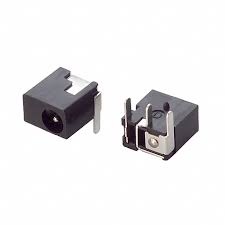 It is vital to unplug the power cord on the wall outlet. Then all screws should be unscrewed in order to open the laptop before removing the hard drive of the laptop. There is a laptop power jack inside the laptop body. This accessory is usually located on the motherboard. Replace the broken power jack with the new one. After replacing it with the new power jack, people can simply put all parts, including the motherboard, hard drive, battery, and any other laptop parts, back to the original condition.
3). Laptop batteries:
Laptop battery is another important part in a laptop. There are many problems that may occur in most laptop batteries. Most batteries can last for at least one year before getting any problems. When people have any problems with their batteries, they should replace them in the correct way. Replacing a laptop battery is not as complicated as what people thought.
 People can simply remove the old battery with the new one. It is very simple to remove the battery from a laptop. In some laptop models, people can simply press the release button to remove the battery easily.
1). Laptop keyboard cover:
This accessory is very popular because it can improve the protection on the laptop. There are a lot of different styles and models of this laptop keyboard cover. Most products are specially designed in order to prevent any scratches or damages on the original laptop keyboard. In some cases, this keyboard cover should be replaced with the new one.

This product can tear because of the intensive or excessive use. People can simply open the keyboard cover before replacing it with the new one. However, they have to be very careful when opening this cover. Then, they have to purchase a new keyboard cover. They have to measure the keyboard size before purchasing the new keyboard cover. People can simply attach the new keyboard cover to their laptop keyboard. It is necessary to avoid the use of any water because water can damage the laptop.
2). Laptop power jack:
Laptop power jack is an important part in a laptop. This accessory is very useful to conduct the electricity for the laptop. This power jack is very fragile. It can break off very easily. When this situation happen, people should open their laptop in order to replace the broken power jack with the new one. First, they have to remove the battery back from the laptop.
3). Laptop batteries:
Laptop battery is another important part in a laptop. There are many problems that may occur in most laptop batteries. Most batteries can last for at least one year before getting any problems. When people have any problems with their batteries, they should replace them in the correct way. Replacing a laptop battery is not as complicated as what people thought.


